
Manage Products Screen in ProdScanner
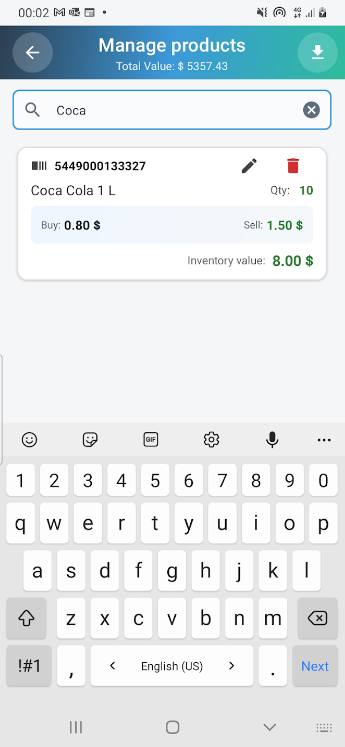
The Manage Products screen is one of the most essential sections in the ProdScanner app. It allows you to efficiently manage your product list, organize your inventory, and keep your stock data up to date. From this screen, you can easily add, edit, or delete products according to your business needs.
Main Purpose
The Manage Products screen is designed to handle all products that are part of your stock-in and stock-out (In/Out) operations.
Any product that does not exist in this list cannot be added by scanning its barcode in the In/Out screen, since it’s not yet registered in the Products table.
This feature helps prevent errors and ensures that no incorrect or unknown barcodes are entered into your inventory.
Adding Products
You can quickly add new products that include a barcode, product name, buying price, and selling price by using the Import CSV button located in the top right corner.
This button allows you to upload an Excel CSV file containing your product details. When you click it, a message will appear giving you the option to download a ready-to-use template, which you can modify according to your product list. You can also choose to skip this message in future uploads.
Adding Products (Second Method)
In addition to the CSV import feature, you can also add products manually directly from the Products screen.
To do this, open the Products screen and press the Add Product ( + ) button. A form will appear allowing you to:
- Scan the product’s barcode
- Enter the Buying Price (Buy)
- Enter the Selling Price (Sell)
- Confirm the details
Once the information is complete, press ADD PRODUCT to save the new item.
The product will immediately appear in your list and will become available for all In/Out stock operations.
Product Details Display
The screen displays all the products saved in your database with the following details:
- Barcode
- Product name
- Buying price (Buy)
- Selling price (Sell)
- Quantity (Qty)
- Inventory value (Total value of that product)
At the top of the screen, you’ll see Total Value, which represents the total financial value of all products currently in stock.
Search, Edit, and Delete
A smart search bar allows you to quickly find any product by typing part of its name or barcode.
You can modify a product’s details — such as name, buying price, or selling price — by clicking the edit (pencil) icon.
To remove a product completely, press the red trash icon, which will prompt a confirmation before deleting the product and all its related transactions.
Why Inventory Management Matters
Efficient inventory management is key to running a successful business. Using an app like ProdScanner helps you monitor your stock levels, control your expenses, and make informed sales decisions.
Whether you own a small shop or simply want to organize your personal supplies, ProdScanner offers a simple and smart way to track your products and keep your daily activities well-managed.
📲 Download the App
Get ProdScanner now on Google Play and start managing your inventory smarter and faster!
