
Comprehensive Analysis of the “Multi-Item Scanner” Screen: From Fast Scanning to Real-Time Inventory Updates
The scanning accuracy in this app largely depends on the camera quality. The higher the camera resolution, the more capable the smartphone becomes in competing with dedicated scanners.
Scanning Interface (Multi-Item Scanner): Efficiency and Stability
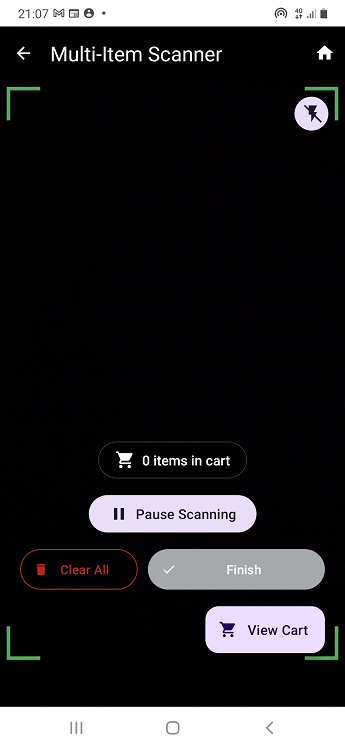
A. Design and Scanning Flexibility
- Zoom Flexibility: Users can pinch to zoom for scanning small or distant barcodes.
B. Continuous Scanning Flow and Automatic Cart Filling
The app adds products one by one automatically without any user intervention, simply by passing them in front of the camera on the scanning screen.
The presence of a “Stop Scanning” button indicates that automatic scanning mode is active. Every successful scan adds the product directly to the cart.
🔔 Technical Note: If no beep sound is heard, the barcode is not in the product database. This can be managed via the “Products” window or by importing a CSV/Excel file through “Manage Products“.
C. Anti-Shake Dragging Technique
For maximum speed and accuracy, it is recommended to place the phone on a stand, point the camera downward, and slide the products under the lens. This method reduces shaking and allows the camera to capture barcodes in fractions of a second.
D. Quick Control Panel
- 🔴 Clear All: Clears the entire cart. Red color serves as a warning to avoid accidental clicks.
- ✅ Finish: Finalize the operation. It serves as a shortcut to the “Checkout” button in the cart, both responsible for updating the inventory.
- 🛒 View Cart: Navigate to the cart overview screen.
Shopping Cart Screen (Cart Overview): Precise Item Management
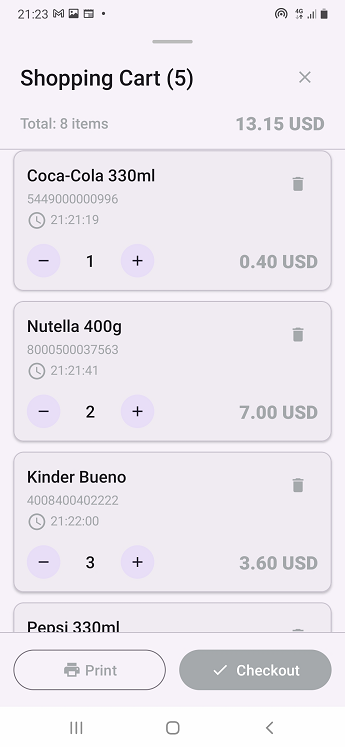
- When pressing “View Cart,” the user enters the shopping cart screen showing transaction details (e.g., total of 8 items).
A. Item Management
The screen provides precise tools for controlling cart contents:
- Adjust quantity using (+) and (-) buttons.
- Delete a specific product via the trash icon.
- View additional information like time of addition and barcode.
B. Final Checkout and Inventory Update
At the bottom of the screen, checkout options appear:
- Print: Print the receipt.
- ✅ Checkout: Confirm the transaction and send data to the inventory update system.
It is important to note that this button functions exactly like the “Finish” button on the scanning interface, both performing the deduction of stock quantities based on scanned products.
📲 Download the App
Get ProdScanner now on Google Play and start managing your inventory smarter and faster!
